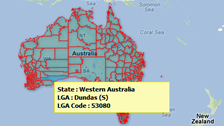
Using shape files of administrative divisions like states or provinces, or statistical regions like census tracts or regions, and overlay them on a base Google Map
Suitable for sales and business data analysis
Cloud Based Mapping Solution
Access from anywhere to view or edit maps online.
Able to locate addresses or build street level maps.
Import or export data efficiently.
Software with ready made vector maps of almost all countries.
Generate geographical heat map for data visualization.
Color or label a map for presentation on the web.
Turn your static image into an interactive element for web.
Highlight areas or draw routes on your plan.
Software produce cross device output, mobile ready.
Create website and customize the design using our software.
Expertise in database and management system setup.
Provide custom made web projects upon demand.